Licensing and Activation

License Activation and Verification Processes

Secure Licensing

and Activation Infrastructure

DesignCad licensing and activation are built on a secure validation infrastructure designed to protect software access, streamline deployment, and ensure uninterrupted use across authorized environments. This enables users to verify license status with ease, complete installation and activation workflows quickly, and move into production without unnecessary delays.

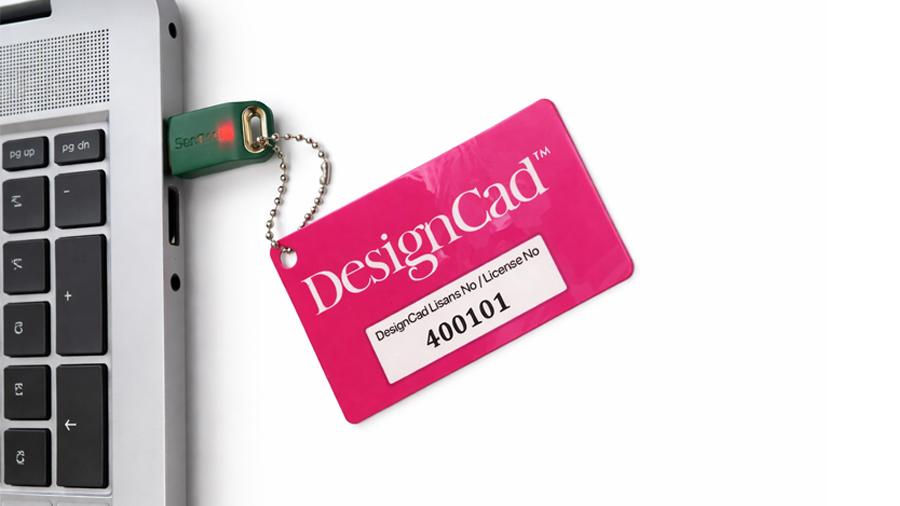
The DesignCad platform uses USB Dongle (Hardlock) licensing to provide a controlled and reliable activation framework. With hardware-based authorization, licenses are validated securely and software access is enabled only on approved systems.

On this page, you can find detailed guidance on module activation, system requirements, and license verification steps—so you can activate your software with confidence and start using DesignCad securely, efficiently, and without disruption.
Licensing Model
• USB Dongle (Hardlock)
Required Information
• License Number
• Company Name (Registered Name)
• Hardware ID
Important Notice
Your license is provisioned in accordance with the usage terms defined in your agreement. In the event of a computer change, reactivation is required.
01
Software Installation

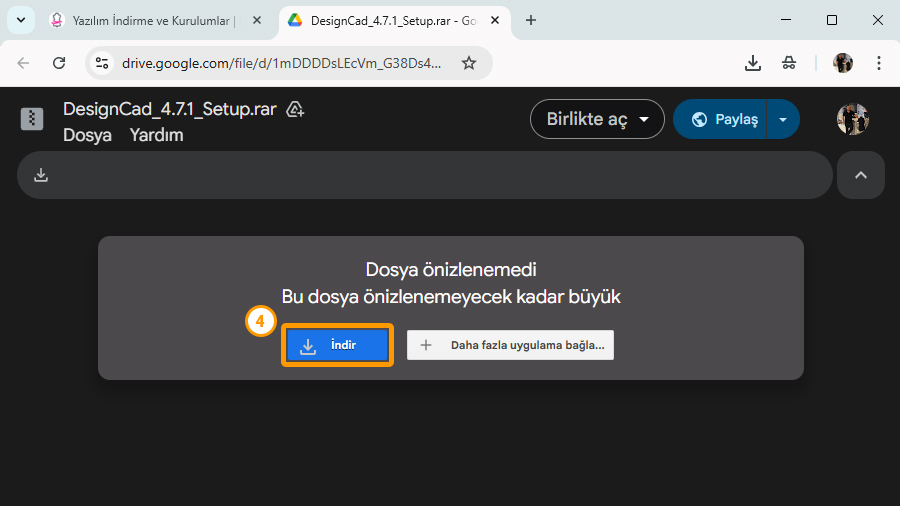
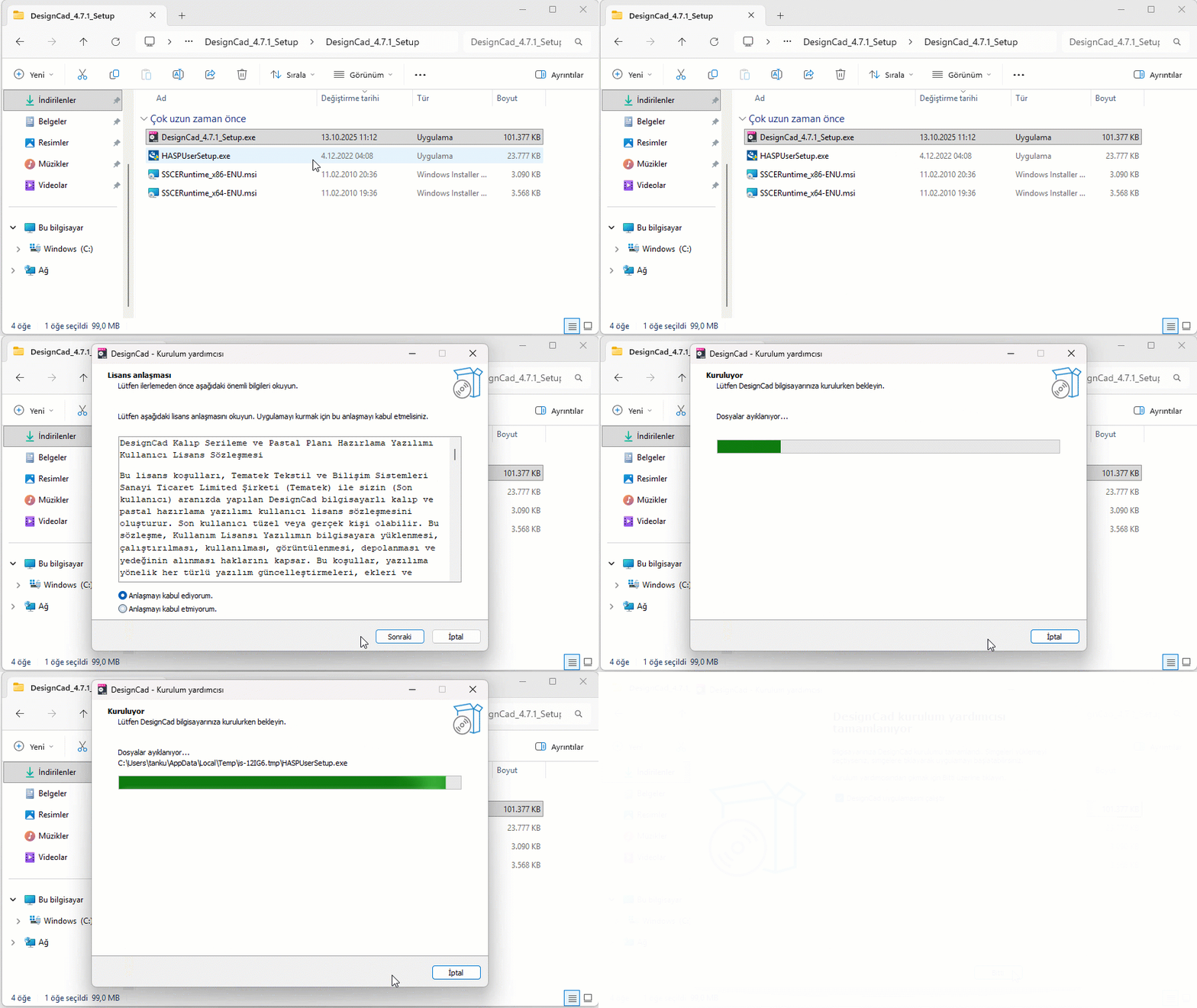
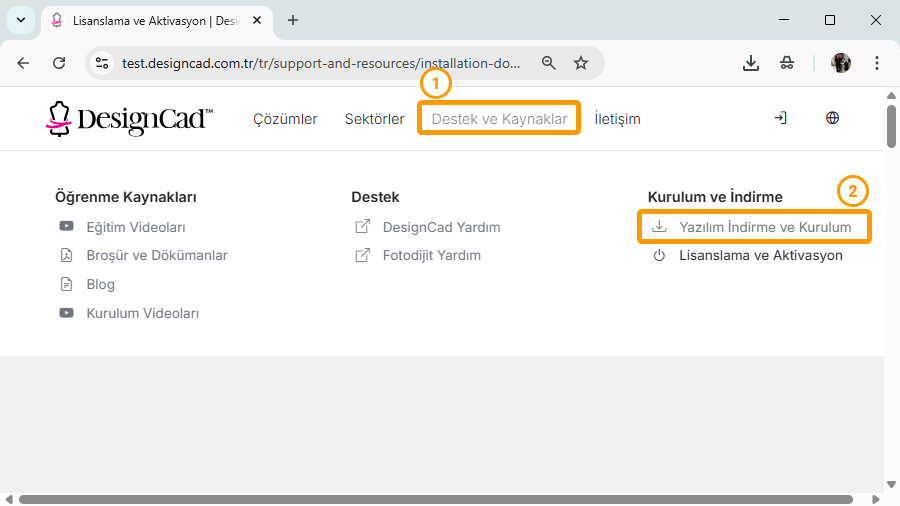
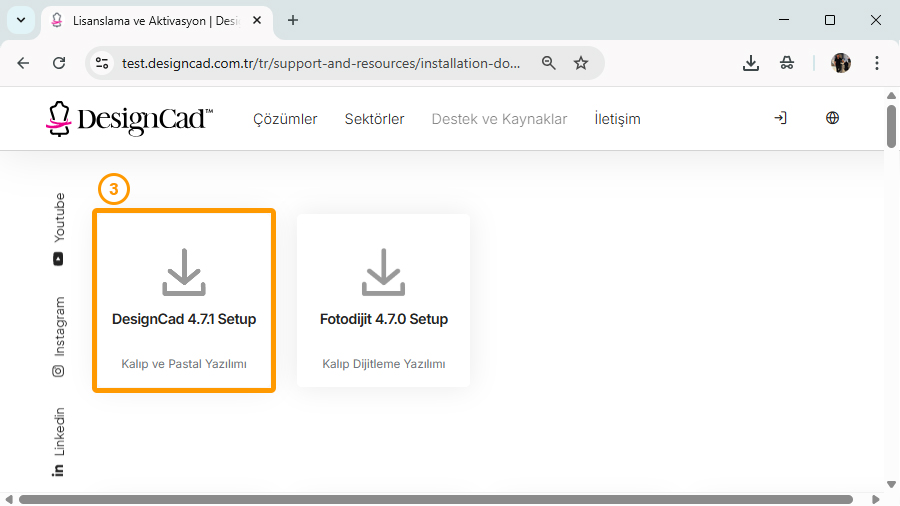
Download the DesignCad 4.7.1 Setup package from the software download page, extract the files, and run setup.exe to start the installation process.

02
Licensing Steps

After installation, follow the licensing steps to properly activate the software and make it ready for use.

03
Installation Verification

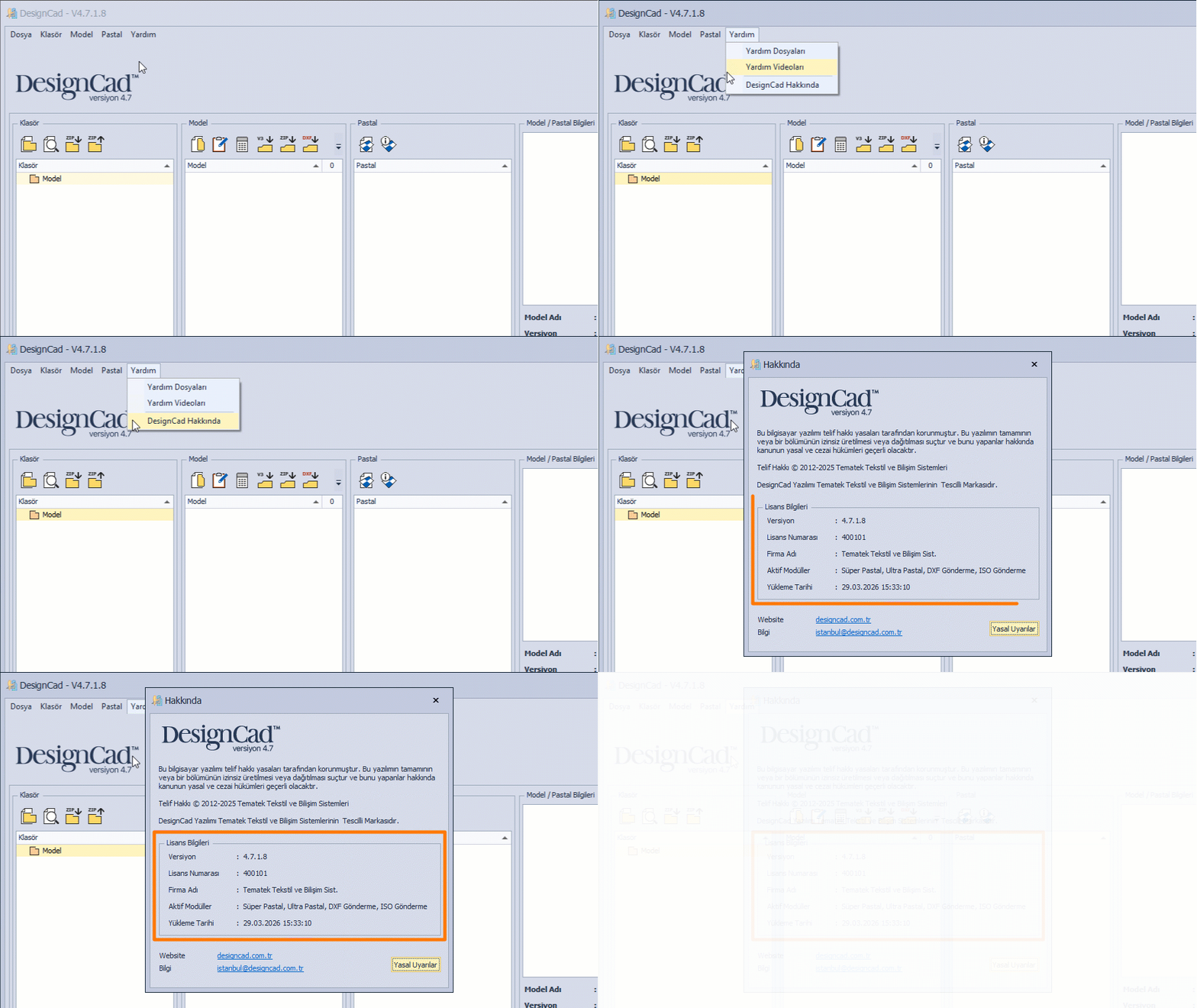
After launching the software, verify that the purchased modules are correctly activated from the About section.

Frequently Asked Questions

We have gathered the most frequently asked questions regarding installation, licensing, and software usage in this section.
You can quickly access the information you need and contact our support team when necessary to ensure uninterrupted workflow.

DesignCad licenses operate with a secure hardware validation mechanism. USB Dongle (Hardlock) licenses are assigned to be active on a single computer. If you need to use the software on multiple computers, you can create a Support Request to get assistance with license configuration.

First, try connecting the USB dongle to a different USB port (preferably directly to the computer). Then reinstall the dongle driver. Some security software may block dongle drivers; in such cases, you may need to define an exception. If the issue persists, our support team can connect remotely and resolve the problem quickly.

After a hardware change (such as motherboard or CPU), the hardware ID changes, so the license must be regenerated. The fastest solution is to create a Support Request with your license number.
Our support team will complete your re-licensing process quickly. (Re-licensing may be subject to additional fees)
If there is no hardware change, formatting and reinstalling the operating system will not affect your existing license.

For USB Dongle (Hardlock) licenses, an internet connection is required for initial setup and license verification. After activation is completed, the software can be used without an internet connection.

USB Dongle (Hardlock) licenses are perpetual and do not expire. Your license remains active based on the modules you have purchased, ensuring long-term and reliable use of the software.

Scroll